1. Login to Your Account
-
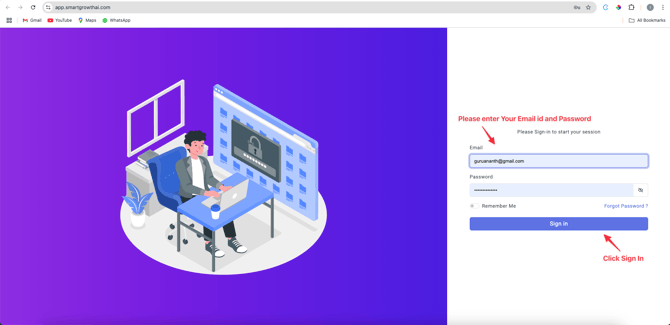
- Use your User ID and Password to log in.
• If you do not have a User ID or Password, please contact your account manager for assistance.
• Click SignIn
-
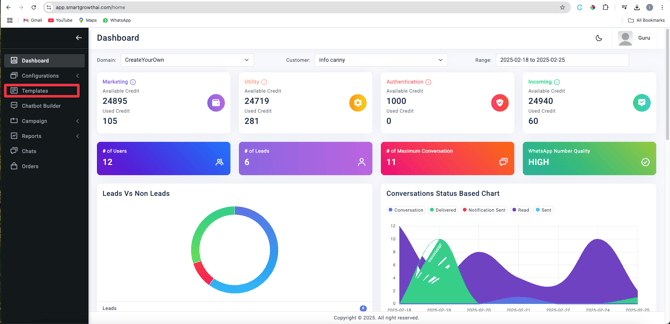
- After logging in, click on Signing to enter the dashboard.
• On the left-hand menu, locate and select Templates .
-
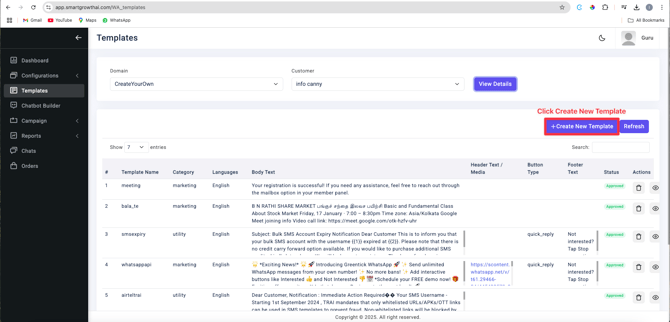
- Click on New Template to begin creating your marketing template.
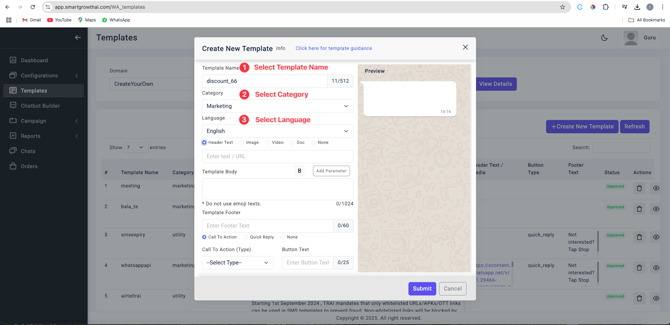
- Fill in the required fields:
- Template Name : Provide a clear and descriptive name for your template.
- Category : Choose the appropriate category for your template.
• Language : Select the language of your content.
-
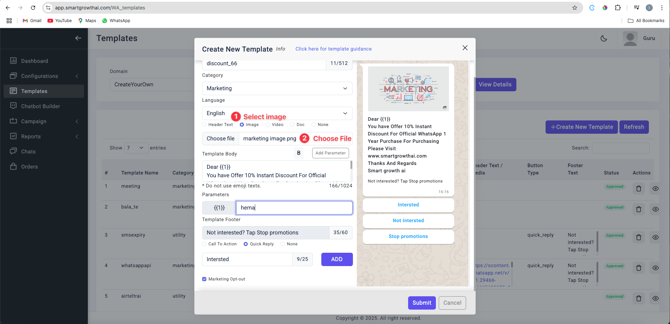
- Click on Choose Image to upload an image or video.
Additional Tips :
- Ensure the file size is less than 5MB.
• Use high-quality visuals that align with your brand.
-
- Copy and paste your marketing content into the designated area.
Additional Tips :
* Always include variables by using the Add Parameter button.
• The character limit for parameters is 1024 characters , and this is mandatory for every marketing template
• This URL will appear at the end of your template.
• Click on Quick Reply to configure response options.
- Additional Tips :
- Avoid using call-to-action buttons.
• Use only quick reply buttons
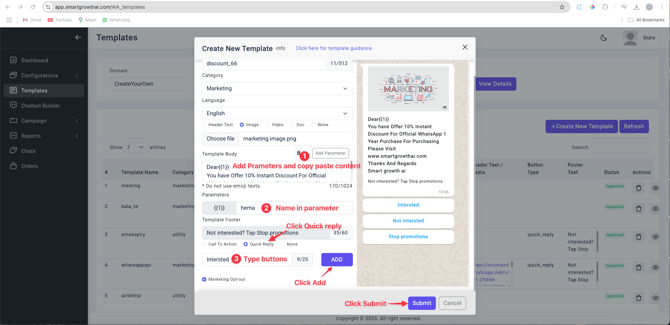
- Interested
- Not Interested
• Add these buttons by typing the labels and clicking Add Button .
* Include Opt-Out Option• For users who wish to stop receiving promotions, include a Marketing Opt-Out option.
• Once all details are filled in, click Submit .
Additional Tips :
• A notification will appear in the top-right corner of the dashboard confirming your submission.
Refresh the Dashboard
-
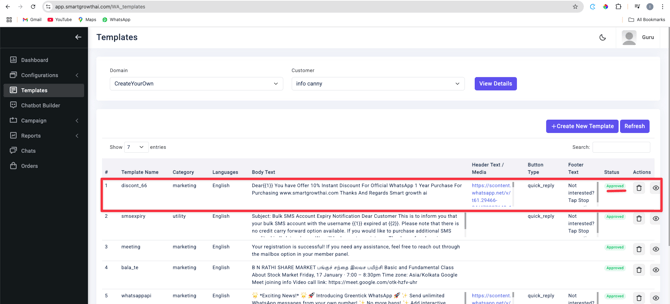
- To ensure your template is approved, click the Refresh Button 2-3 times.
• After refreshing, your template should show as Approved .