
Steps to Access the Delivery Report
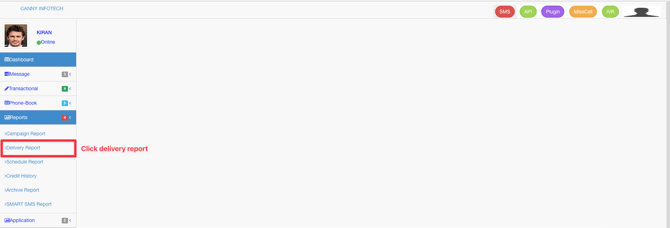
- Navigate to Reports
- In your dashboard, click Reports in the left-hand menu.
- Open the Delivery Report
- Select Delivery Report from the list.
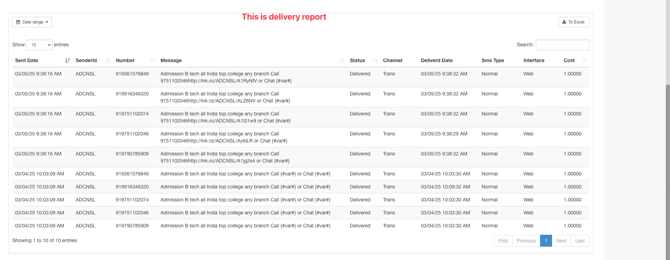
- Review Report Details
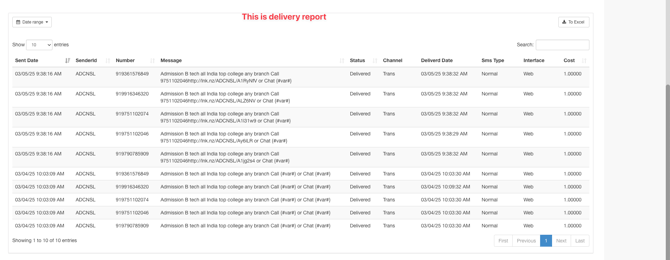
- The report displays:
- Message Content : Full text of sent messages.
- Message Status : Delivered, Undelivered, or Failed.
- The report displays:
• Delivery Metrics : Total messages sent, delivered, and undelivered counts.
Why Use the Delivery Report?
- Track real-time delivery success rates.
- Identify and resolve issues with undelivered messages.
••Validate campaign performance for compliance or auditing.
Steps to Access the Campaign Report
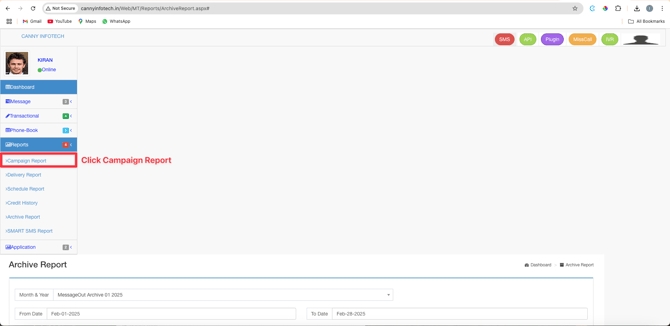
- Navigate to Reports
- In your dashboard, click Reports in the left-hand menu.
- Open the Campaign Report
- Select Campaign Report from the list.
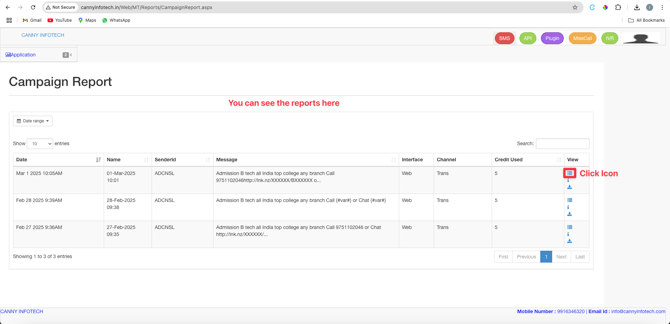
• Scroll down to view the campaign data table.
Understanding the Icons
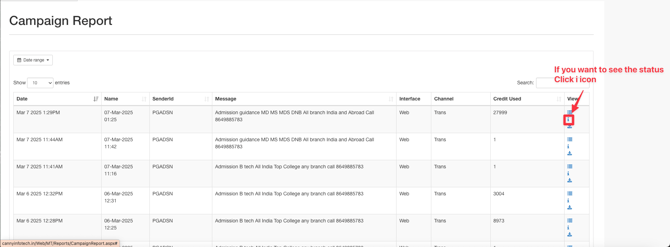
Three action icons appear in the report table for quick access:
- ≡ (Three Bars Icon)
- Purpose: View the Delivery Report directly.
- Use Case: Check real-time delivery statuses (delivered/undelivered) for individual messages.
-
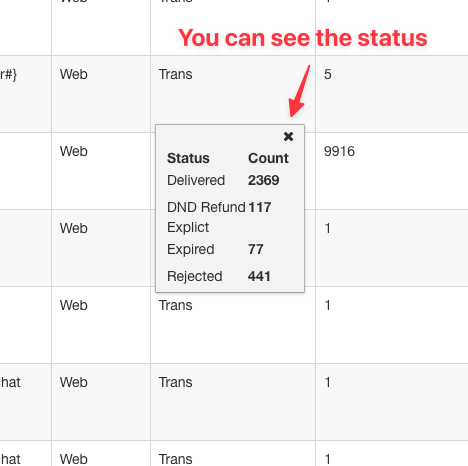
- Purpose: See detailed message statuses.
- Statuses Include:
- Delivered: Message reached the recipient.
- DND Refund: Message failed due to "Do Not Disturb" settings.
- Explicit: Message blocked by the recipient’s explicit opt-out.
- Expired: Message timed out (e.g., network delay).
- Rejected: Message failed (invalid number, carrier block, etc.).
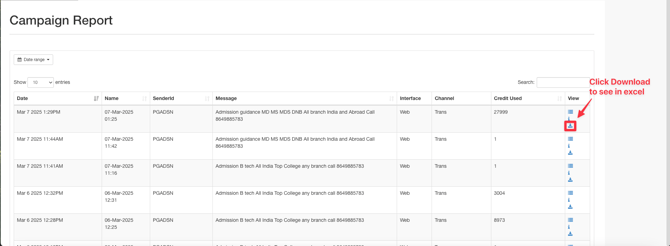
- ⇩ (Download Icon)
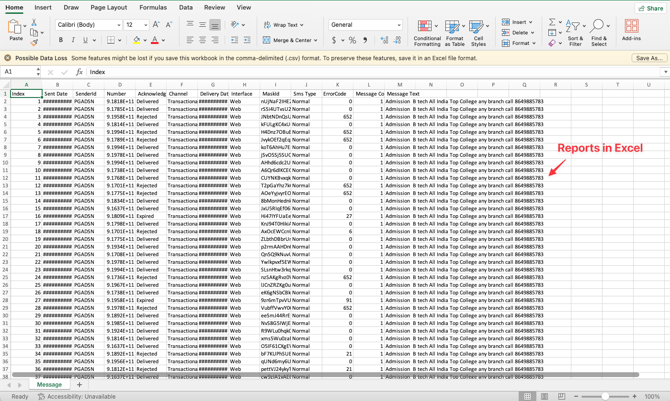
- Purpose: Export the report as an Excel file.
• Use Case: Share data with stakeholders or analyze offline.
Why Use the Campaign Report?
- Track campaign success with delivery rates and error logs .
- Troubleshoot issues using status codes like DND Refund or Rejected .
• Export data for presentations or deeper analysis.
Steps to Access the Archive Report
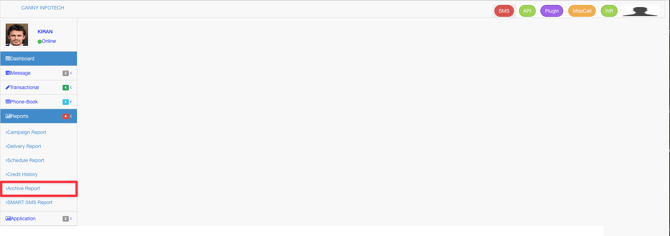
- Navigate to Reports
• In your dashboard, click Reports in the left-hand menu.
2 . Open the Archive Report• Select Archive Report from the list.
-
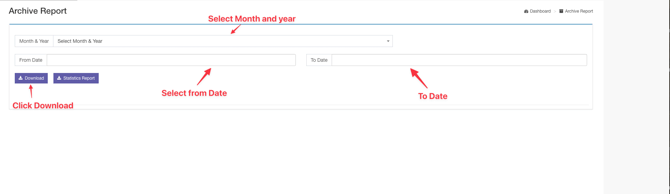
- Select Month/Year: Choose the month and year for the historical data.
- Set Date Range:
- From Date: Pick the start date of your desired period.
- To Date: Pick the end date of your desired period.
4.Download the Report
• Click Download to export the report as an Excel file.
Key Features of the Archive Report
- Historical Data Access: Retrieve reports from the past year or older.
- Custom Date Ranges: Filter data by specific periods (e.g., quarterly, yearly).
• Export Flexibility: Download reports for offline analysis or sharing.