
Step 1: Login to Your Account
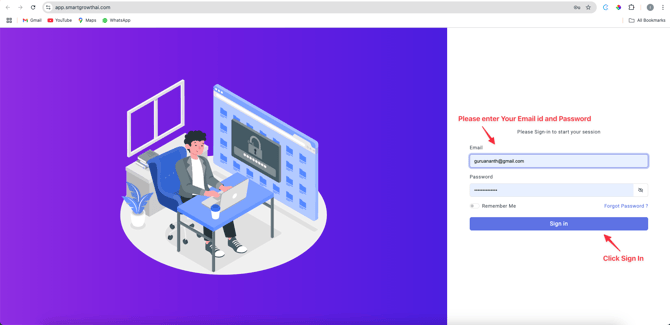
- Enter your User ID and Password to log in.
- If you do not have a User ID or Password, please contact your account manager for assistance.
- Once logged in, click on Signing to access the dashboard.
Step 2: Access the Dashboard
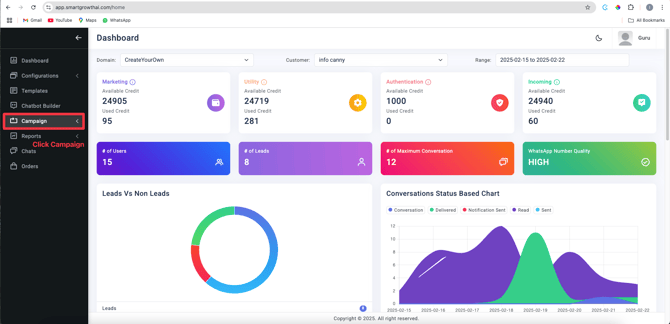
- In the left-hand menu, select Campaign .
Step 3: Start a New Campaign
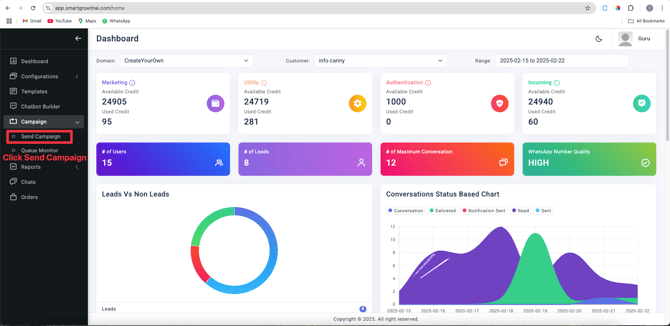
•Under the Campaign menu, click on Send Campaign .
Step 4: Send Campaign
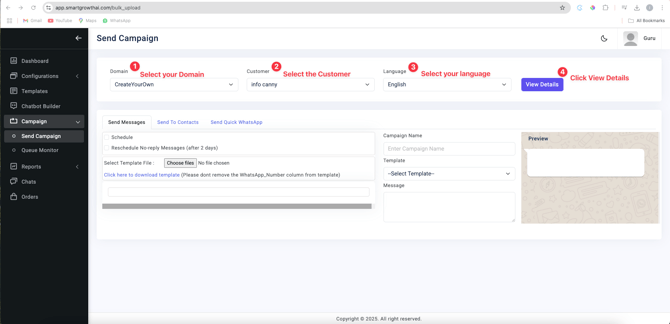
- Select the following details:
- Domain
- Customer
- Language
- Click on View Details to refresh the page and ensure all settings are updated.
Step 5: Download the Template
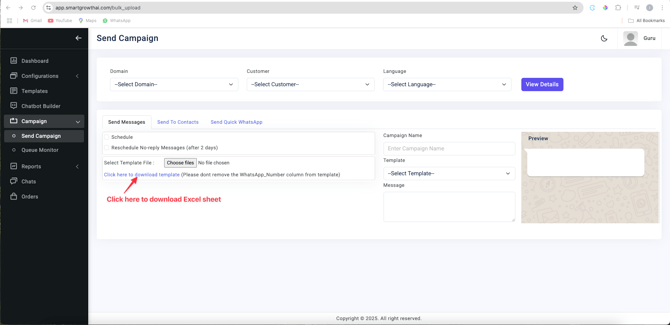
- Click on Send Message .
- Then, click on Click Here to Download Template .
Important Notes:
- You cannot use your own Excel sheet. You must download and use our provided Excel template.
•Do not modify the first column header in the template. The first column should always represent the number , and the second column should represent the name .
Step 6: Upload Your Edited File
- Edit the downloaded Excel template with your data.
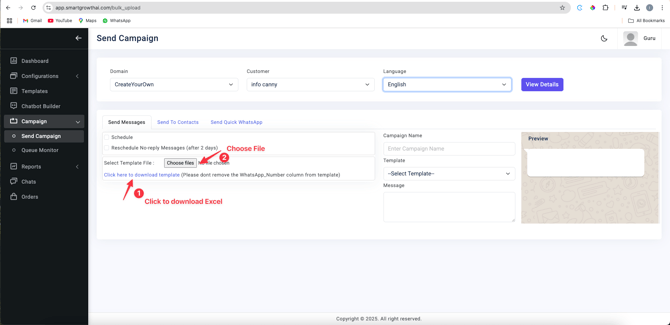
- Once completed, upload the edited file by clicking Choose Files .
Step 7: Configure Campaign Settings
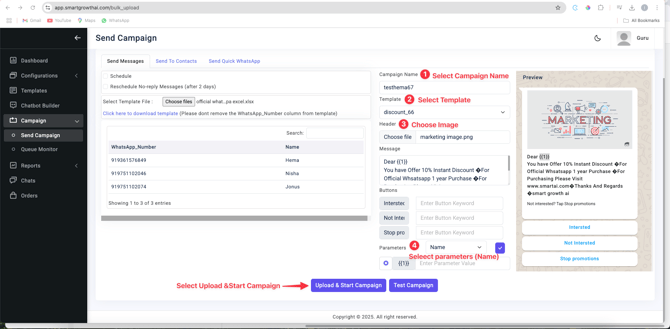
- Provide a unique Campaign Name (avoid using common names).
- Select a Template for your campaign.
•For the Header , upload an image by clicking Choose File .
- Choose the columns you need from the uploaded file.
- Confirm your selections by ticking the checkbox in the right-hand menu.
Step 9: Finalize and Launch
- Click Upload to finalize your campaign setup.
- Once ready, click Start Campaign .
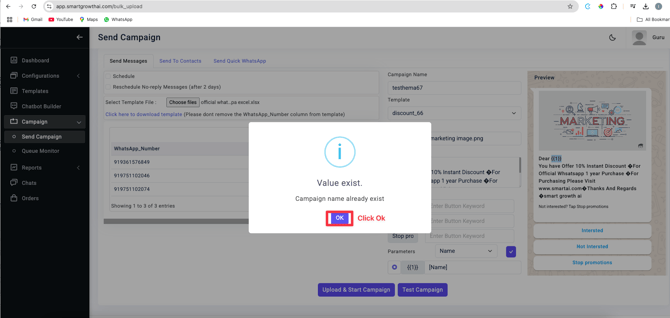
- A popup will appear; click OK to confirm.
Additional Tips
- Double-check your Excel file before uploading to avoid errors.
- Ensure your campaign name is descriptive and unique to easily identify it later.
- Use high-quality images for headers to enhance the visual appeal of your campaign.