1. Login to Your Account If you already have a username and password, log in to your account. If not, contact your account manager to get access credentials.
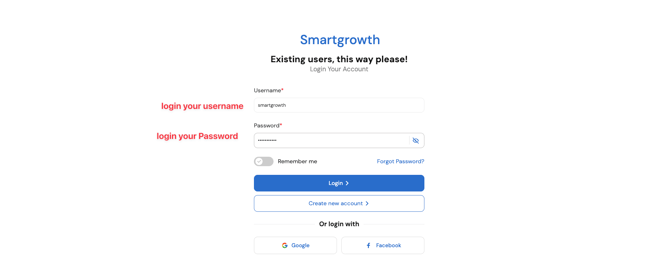
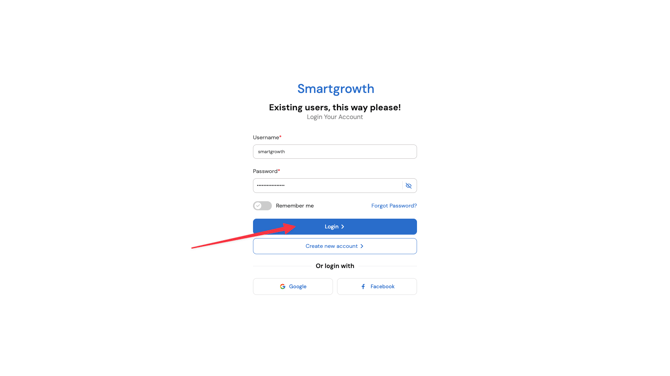
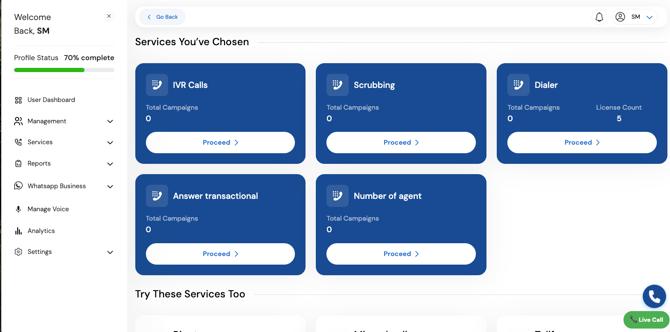
Once logged in, you will see the dashboard .
-
Going to service
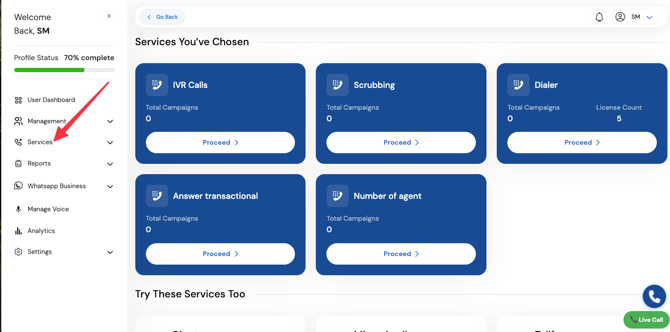
-
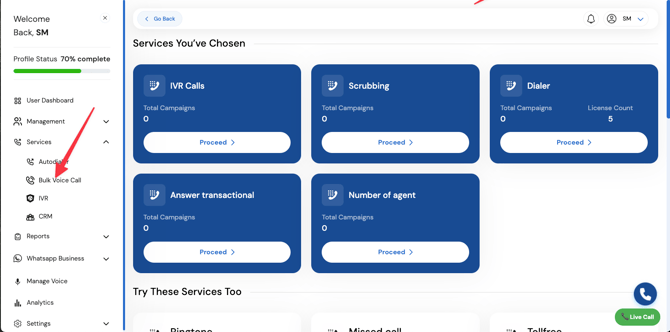
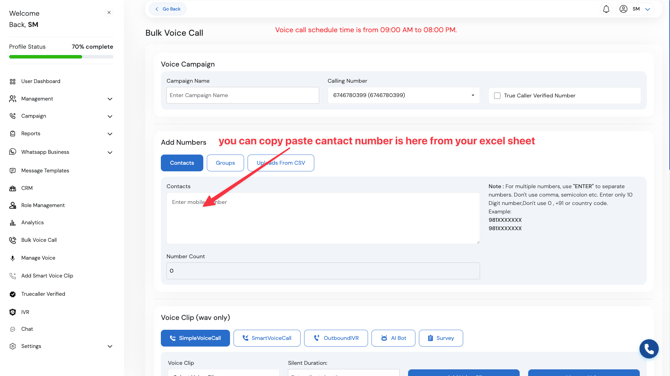
Select "Bulk Voice Call"
- From the dashboard, navigate to the option for bulk voice calls .
Configure the Campaign
-
Campaign Name :
- Enter a name that helps you identify this specific voice broadcast campaign (e.g., "Product Launch Promotion").
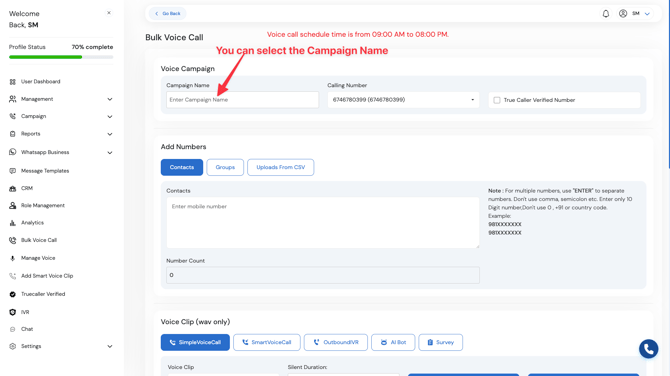
- Enter a name that helps you identify this specific voice broadcast campaign (e.g., "Product Launch Promotion").
-
Calling Number :
- Choose the calling number
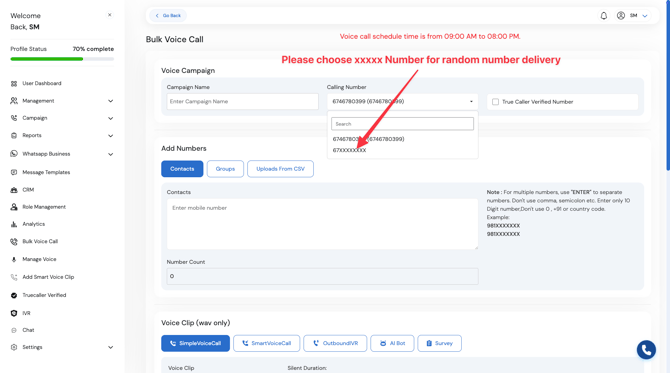
- Choose the calling number
Choose the number from which the calls will be made. You can copy-paste contact numbers directly from your Excel sheet
4. Prepare Your Voice Clip
-
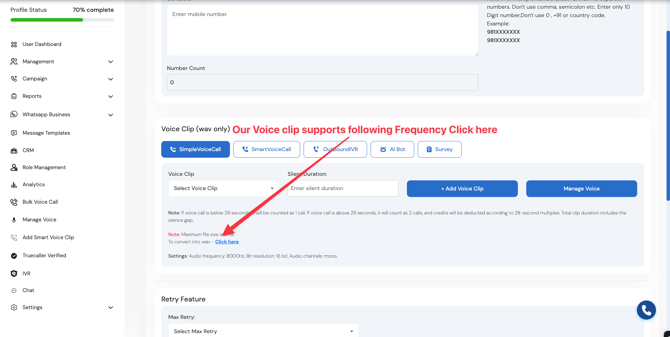
Ensure your voice clip meets the following requirements:
- Audio Frequency : 8000 Hz
- Bit Resolution : 16-bit
- Audio Channel : Mono
-
If your audio file doesn’t meet these specifications:
- Click the provided link or button to open the audio converter website .
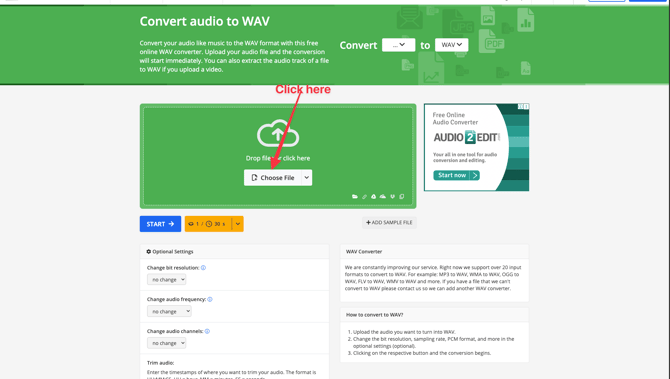
- Upload your audio file by clicking Choose File .
- From the dashboard, navigate to the option for bulk voice calls .
upload file
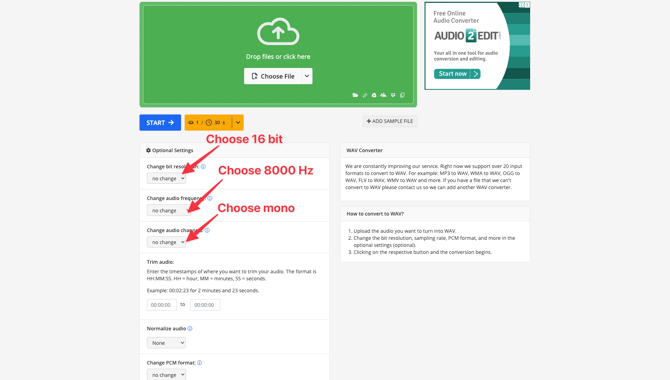
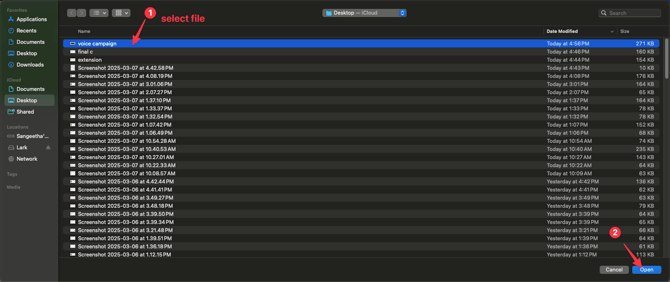 Adjust the settings:
-
- Change the bit resolution to 16-bit.
- Change the audio frequency to 8000 Hz.
- Set the audio channel to Mono.
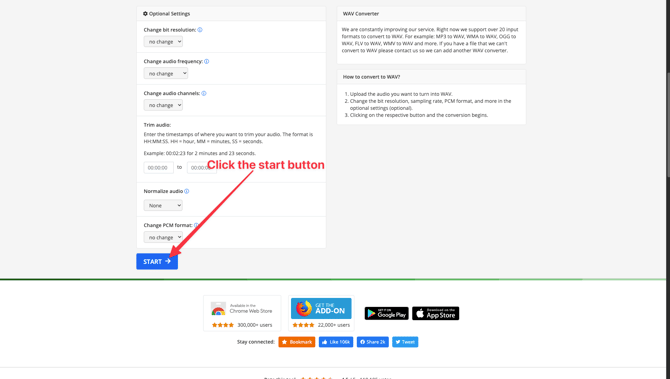
- Click Start to process the file.
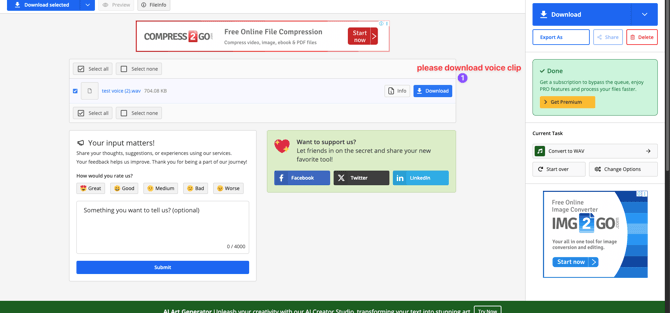
- Once processed, click Download to save the converted file.
-
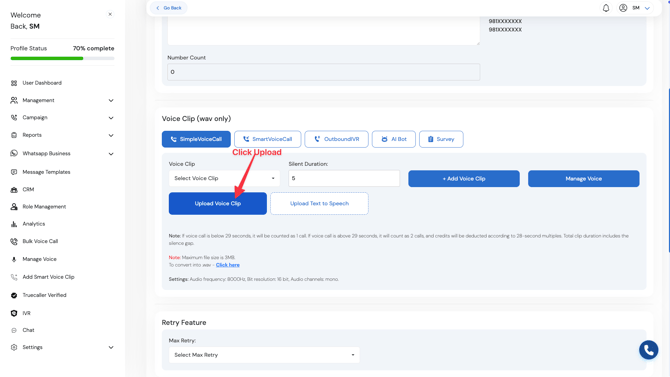
Go back to the voice call campaign page and upload the converted voice clip.
-
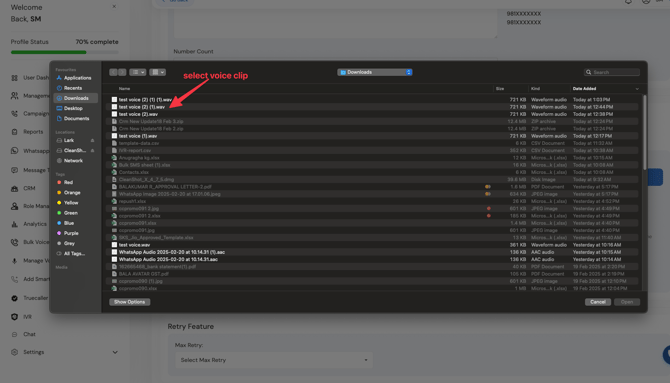
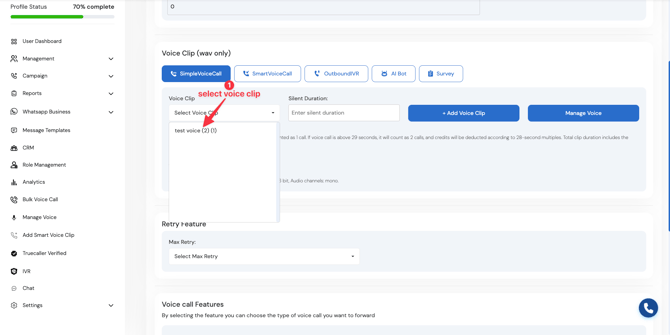
Select and Upload Voice clip
-
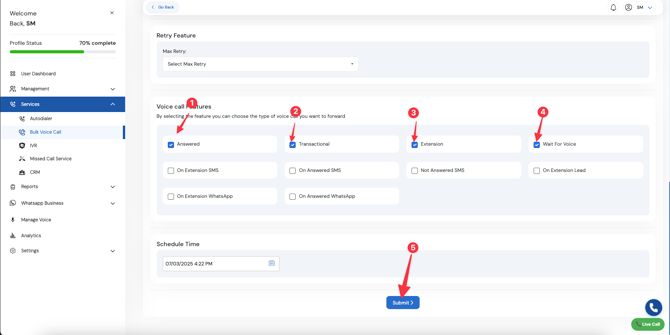
5. Enable AI Feature: "Wait for Voice"
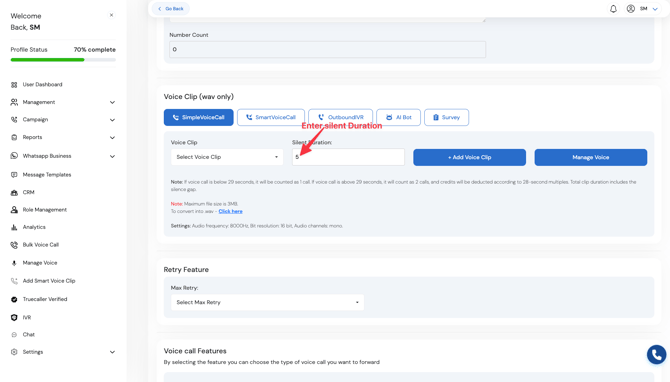
- This unique AI feature ensures the recipient says "Hello" before the voice clip starts playing.
- To enable it:
- Select the Wait for Voice option.
- Specify a silent duration (e.g., 5 seconds) if the user doesn’t respond immediately.
- This avoids unnecessary call disconnections and ensures better engagement.
6. Configure Retry Options
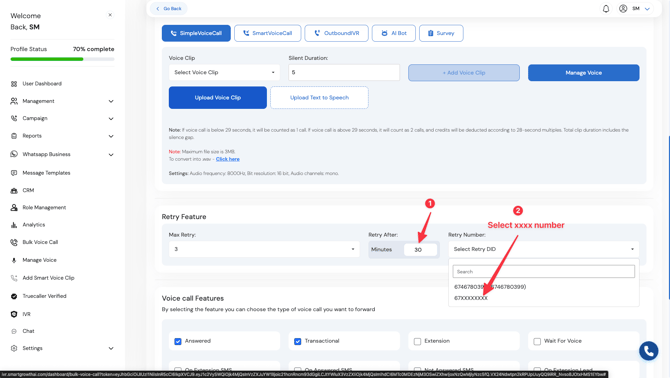
- To handle missed calls:
- Select the Retry Option .
7. Add Contact Numbers
- Paste the list of contact numbers into the designated field.
- Ensure the numbers are in the correct format (e.g., including country codes if necessary).
8. Start the Campaign
- Double-check all settings:
- Campaign name
- Calling number
- Voice clip
- Wait for Voice settings
- Retry options
- Contact list
- Once everything is ready, click Start Campaign .