
Step 1: Logging In
To access the dashboard and begin creating your campaign:
-
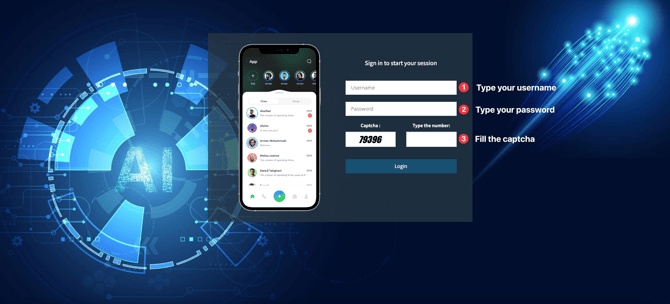
Login Credentials :
- Enter your username and password on the login page.
- If you don’t have login credentials, please contact your account manager for assistance.
-
Accessing the Dashboard :
- Once logged in, you’ll be redirected to the dashboard , where you can manage and create campaigns.
- Once logged in, you’ll be redirected to the dashboard , where you can manage and create campaigns.
Step 2: Starting a WhatsApp Campaign
After logging in, follow these steps to create and send your WhatsApp campaign:
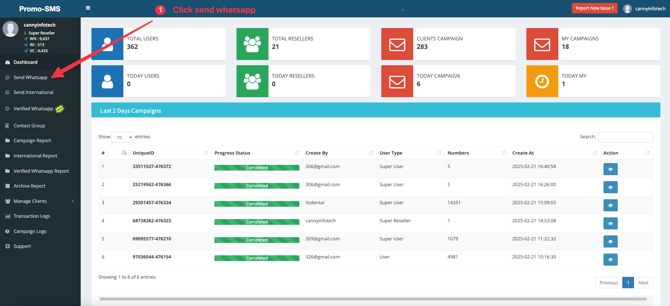
Select the "Send WhatsApp" Button
- On the dashboard, locate and click the "Send WhatsApp" button to initiate the campaign creation process.
Add Mobile Numbers
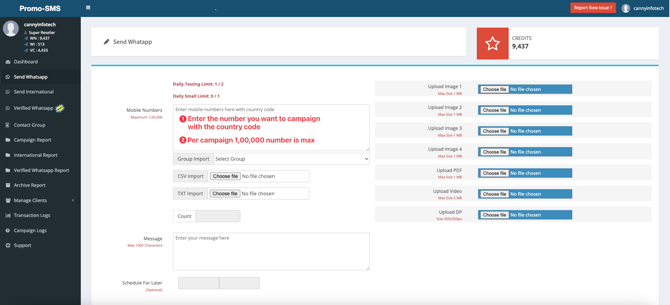
- In the mobile number box , paste all the phone numbers you want to include in the campaign.
- Important : Ensure each number includes the correct country code. For example:
- Use
+91for India (e.g.,+919876543210). - The country code is mandatory for all numbers.
- Use
- You can include up to 1 lakh (100,000) numbers per campaign.
Compose Your Message
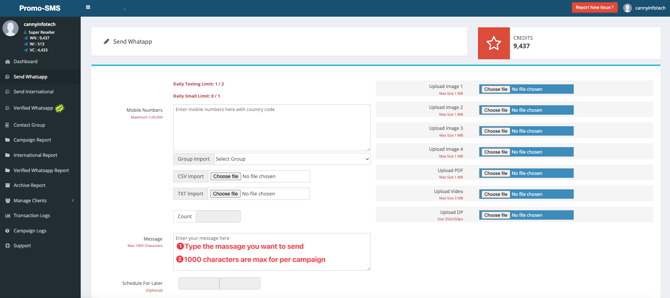
- In the message box , type the message you wish to send.
- Character Limit : The maximum length for your message is 1000 characters .
- Tip: Keep your message concise, engaging, and action-oriented to maximize impact.
Upload Media (Optional)
Enhance your campaign by attaching media files: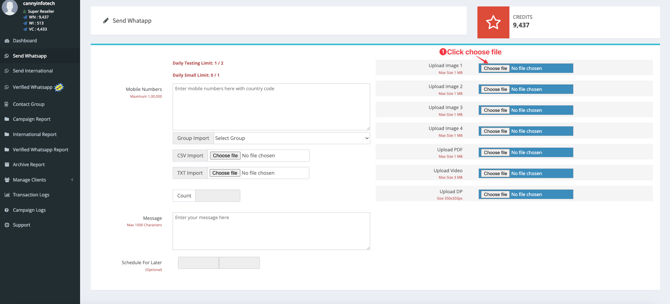
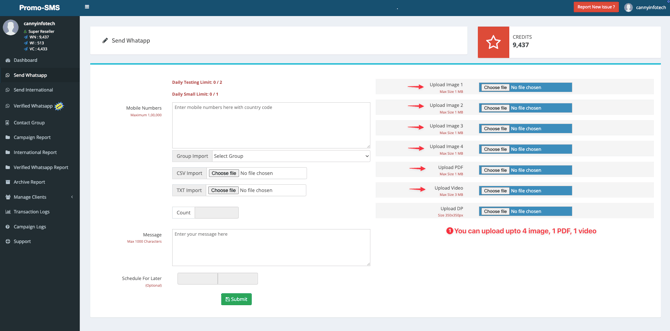
- You can upload up to:
- 4 images
- 1 PDF document
- 1 video
- Ensure your media files are optimized for quick loading and compatibility.
Step 3: Submitting the Campaign
Once you’ve completed the above steps:
- Review all details, including numbers, messages, and media files.
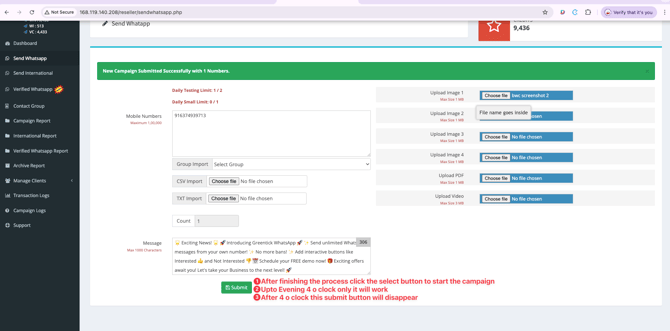
- Click the "Submit" button to start the campaign.
- Submission Timing : Note that campaigns can only be submitted before 4 PM daily. After 4 PM, the submit button will no longer be available
Step 4: Campaign Execution
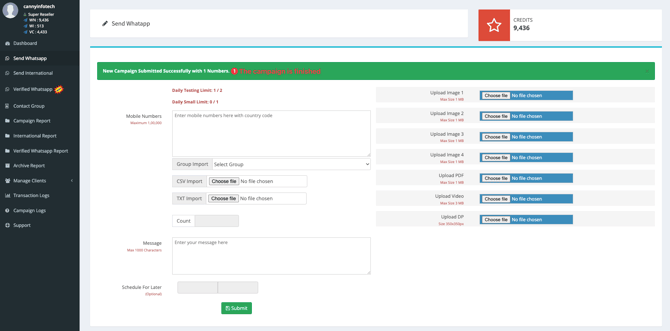
- Once submitted, your campaign will start automatically.
- Monitor the progress from the dashboard to track delivery and engagement metrics.
Additional Notes
- Country Code Requirement : Always include the country code (e.g.,
+91for India) before every number to avoid errors. - Daily Deadline : Remember to submit your campaigns by 4 PM to ensure they are processed on the same day.
- Media Limits : Stick to the upload limits of 4 images, 1 PDF, and 1 video per campaign to avoid issues.
Need Further Assistance?
If you encounter any issues or need additional support:
- Contact your account manager for login-related queries.
- Reach out to our support team for technical assistance with campaigns.
We’re here to help you succeed with your WhatsApp campaigns!